

What you need
- Active VPNUK account
- VPN username & password
- Amazon device (latest firmware)
- Internet access
The VPNUK App has been developed from the ground up to our very own specification, running the highly secure, multi-configurable and widely compatible WireGuard and OpenVPN engines, you have a choice of connection types. The VPNUK App offers an extremely simple interface, zero configuration is required — once installed simply choose your connection type, enter your login credentials, choose your server and hit the connect button.
VPNUK API: The VPNUK App uses our API which assists you with setup. The App is fully implemented with Amazon In-App purchase, so you are able to administer your account directly from the App.
This tutorial uses the official VPNUK app designed for Amazon Fire TV (FireOS) devices, which is a free download from the Amazon App Store and compatible with all Amazon (FireOS) devices including Fire Phone, Fire Tablets and Fire TV. Your Amazon device must be running the latest Amazon firmware.
Install VPNUK App for Amazon
Go to the Amazon App Store on your Amazon device and search for the official 'VPNUK' app,install it and run the app.
Onboarding
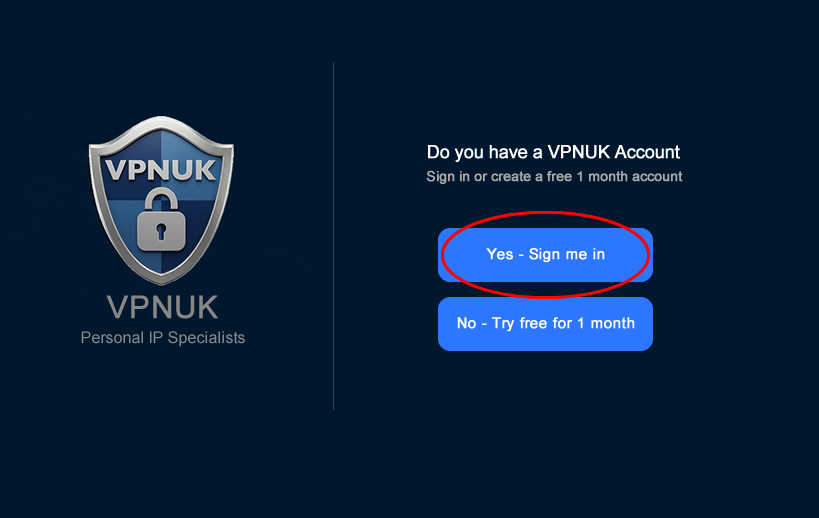
If you already have a VPNUK account click 'Sign In', if you do not have an account choose the option to 'Sign Up' for a 1 month free trial.
Connection Settings
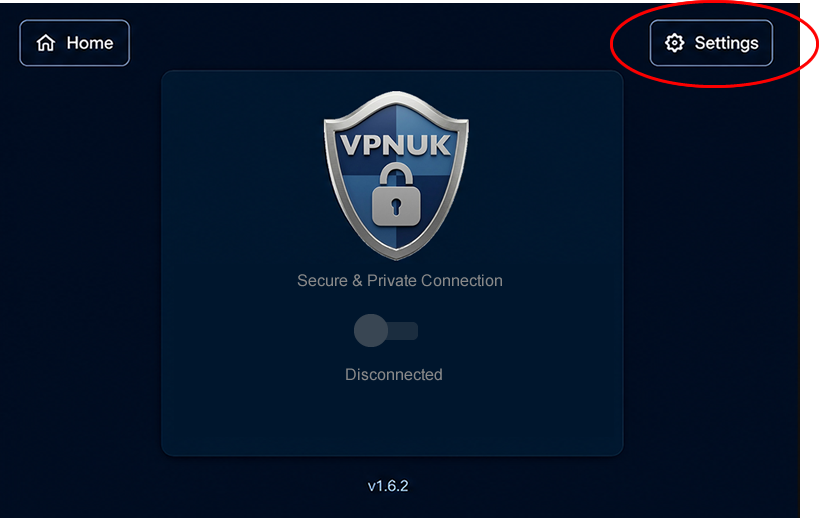
Click onto the settings cog.
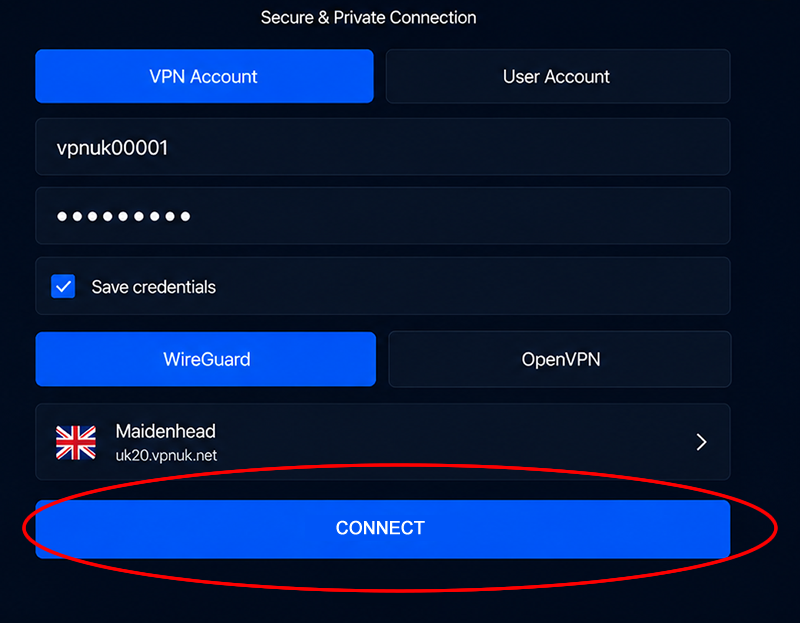
Choose login type
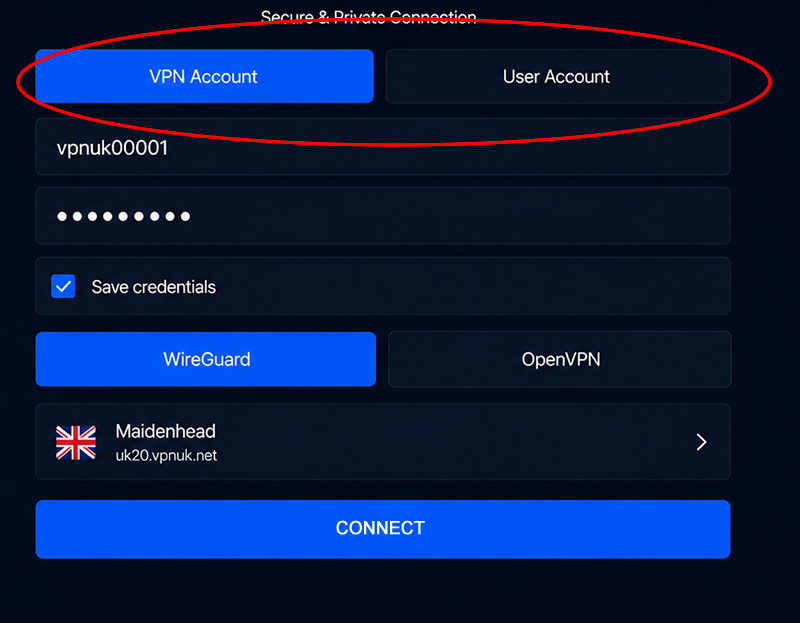
You can login with your VPNUK account credentials or with your User Account credentials. In this guide we will use the VPN Account Credentials
Enter Username
Enter your VPN Account Username
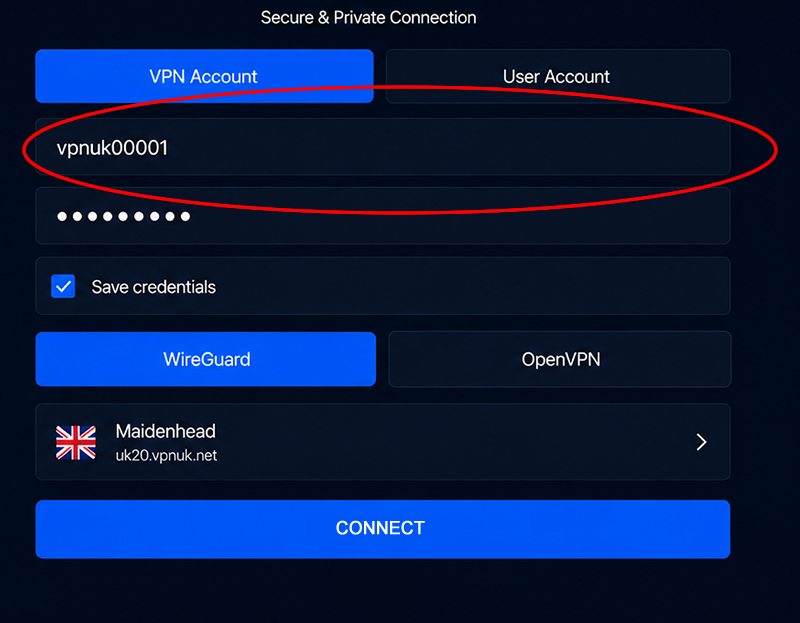
Password
Enter your VPN Acocunt password.
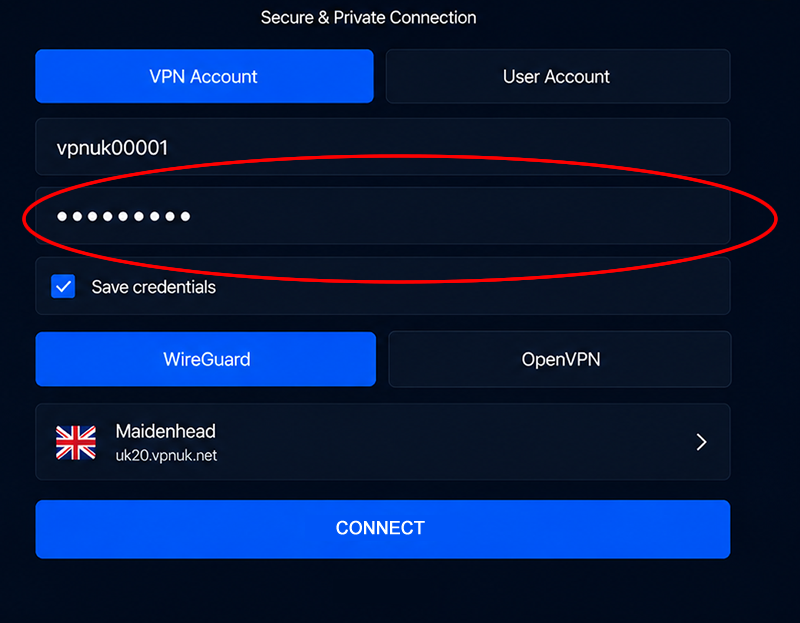
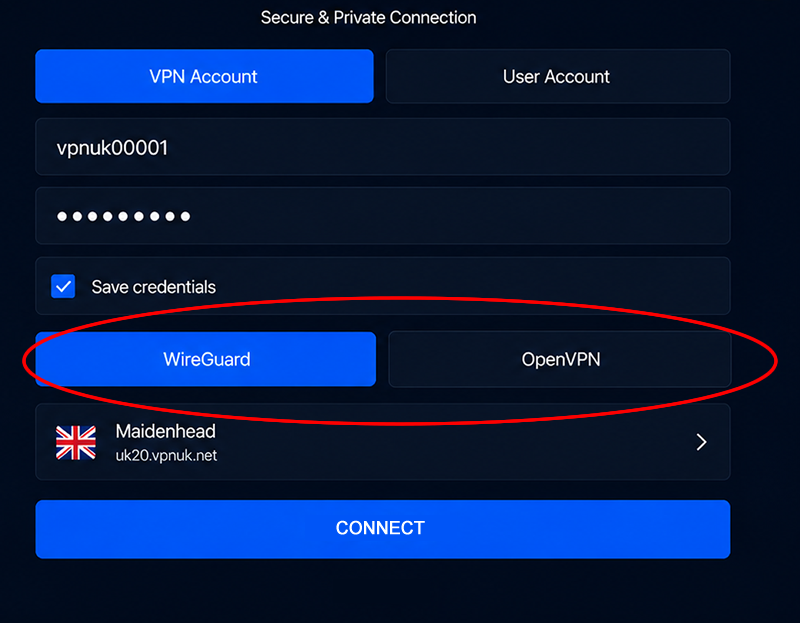
Connection Type
You can connect to the VPN through a WireGuard or OpenVPN connection.
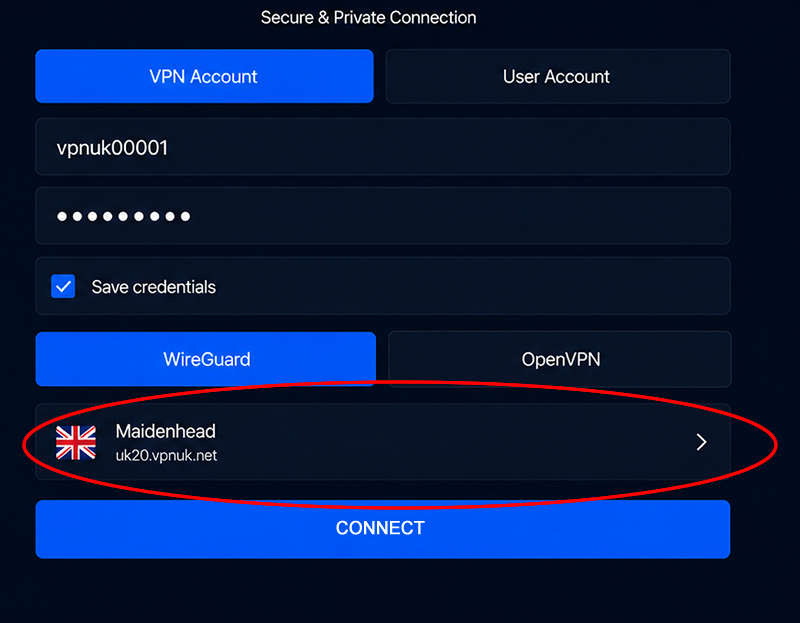
Choose Server
Click onto the 'Select Server' dropdown menu and select your VPNUK server. If you have a dedicated IP account you must select the server that corresponds with your unique IP.
Connect
You can now connect to your VPNUK account.
Connection Complete
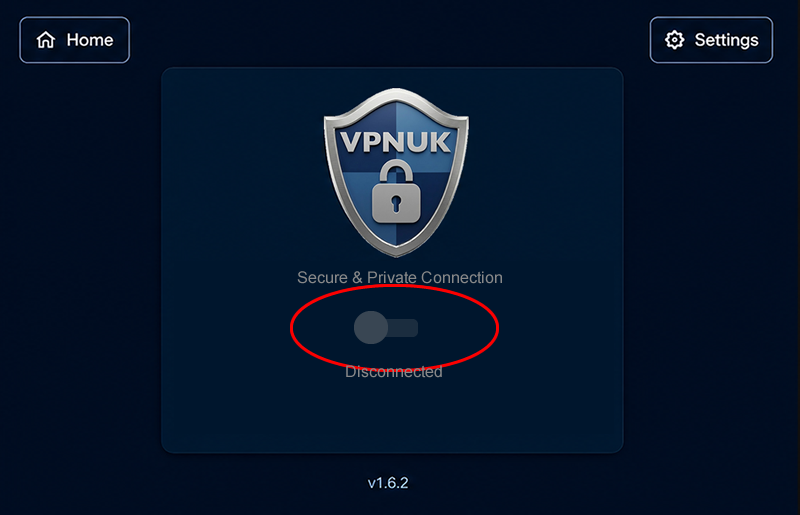
Your account will now be connected to the VPN. If you would like to disconnect or switch to a different server, click the Disconnect button and choose a different server. You can reconnect from the Quick Launch screen using the quick connect toggle. To edit your connection in future, click the settings cog on the top right of the screen.
This tutorial will show you how to download the official VPNUK app using the Downloader app. The VPNUK App is available for direct download from our server and is compatible with all Amazon devices including Fire Phone, Fire Tablets and Fire TV.
Kindle Fire or Fire Phone: Enable Unknown Sources — pull your notification bar down, select Settings > Applications and set Apps from Unknown Sources to On.
Amazon Fire TV: Enable Developer Options — go to Settings > My Fire TV > Developer Options > Enable Install from Unknown Sources.
Install VPNUK App via Downloader
There are three sub-steps to download and install the VPNUK App using the Downloader app:
Install Downloader from Amazon App Store
From your Amazon Fire TV home screen go to Find from the menu, then search for and install the Downloader App.

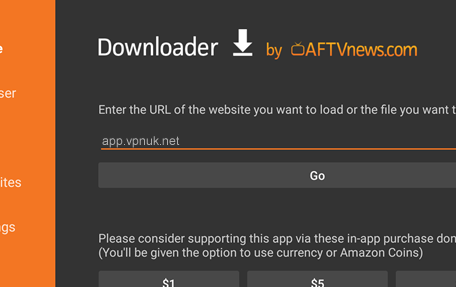
Enter the VPNUK App shortcode into Downloader
Enter the shortcode 7524094 into Downloader, then click Go.
Install VPNUK App for Amazon
Go to the Amazon App Store on your Amazon device and search for the official 'VPNUK' app,install it and run the app.
Onboarding
If you already have a VPNUK account click 'Sign In', if you do not have an account choose the option to 'Sign Up' for a 1 month free trial.
Connection Settings
Click onto the settings cog.
Choose login type
You can login with your VPNUK account credentials or with your User Account credentials. In this guide we will use the VPN Account Credentials
Enter Username
Enter your VPN Account Username
Password
Enter your VPN Acocunt password.
Connection Type
You can connect to the VPN through a WireGuard or OpenVPN connection.
Choose Server
Click onto the 'Select Server' dropdown menu and select your VPNUK server. If you have a dedicated IP account you must select the server that corresponds with your unique IP.
Connect
You can now connect to your VPNUK account.
Connection Complete
Your account will now be connected to the VPN. If you would like to disconnect or switch to a different server, click the Disconnect button and choose a different server. You can reconnect from the Quick Launch screen using the quick connect toggle. To edit your connection in future, click the settings cog on the top right of the screen.
Troubleshooting Guide
Your VPNUK account should work first time, every time. If you experience any problems, the first thing to do is contact us on our Live Help service for instant assistance. The following is a basic troubleshooter for the most common issues.
- Cannot Connect. Go to Optional Settings, change the Protocol from UDP to TCP or vice versa. You can also try enabling Obfuscation.
- Connection is slow. Go to Optional Settings and change the Protocol from UDP to TCP or vice versa. You can also try lowering the MTU slightly, one step at a time, and using a third-party DNS provider.
- Connection Blocked. Go to Optional Settings and switch on Obfuscation.
- VPN connects but not routing traffic. Go to Optional Settings and lower your MTU. If that does not work, try enabling Custom DNS.
- Nothing Works. Please contact our Live Help team. Copy or screenshot the last dozen or so lines of the connection Log to send to us.
VPN Setup on Routers — Protect All Devices
For users who want complete home-wide security, setting up VPNUK on a VPN-compatible router is a great option. VPNUK supports all modern routers with VPN functionality.
Benefits of Router VPN
- Protects All Devices — covers Smart TVs, game consoles and all connected devices
- Always-On VPN — no need to connect manually each time
- Multiple Protocol Support — works with OpenVPN, WireGuard, L2TP and PPTP
- Bypass VPN Blocks — avoid app-based VPN restrictions on streaming services
Drawbacks of Router VPN
- Slightly Slower Speeds — due to encryption overhead
- More Complex Setup — requires manual configuration (VPNUK provides easy guides)
- Not All Routers Support VPNs — ensure your router is compatible before setting up
VPNUK offers detailed setup tutorials for all supported routers, making it easy to configure your VPN at the router level.
View All Router Guides