Choose your setup method
OpenVPN is recommended for most users. WireGuard offers faster speeds but requires a Dedicated IP account.
Setting up an OpenVPN connection on a Tomato router
The following instructions will guide you through a configuration of an OpenVPN connection on a Tomato compatible router. This is the recommened connection for Tomato compatible routers connecting to the VPNUK service. There are only a dozen or so routers compatible with Tomato firmware, please check the router database on the Tomato website for more information.
IMPORTANT NOTICE: VPNUK cannot assist in the flashing of, or installation of Tomato firmware, nor can we be held responsible for damage caused by clients configuring uncompatible routers or flashing incorrect firmware. Please only install official Tomato firmware from the Tomato website onto compatible routers. Before you attempt to configure your router please setup an OpenVPN connection on your computer to ensure the account is working.
Config File Generators
Please ensure you have the pfsense certificate file. You can download the certificate from the follow link:
1. Login to router
Login to your router and go to Administration
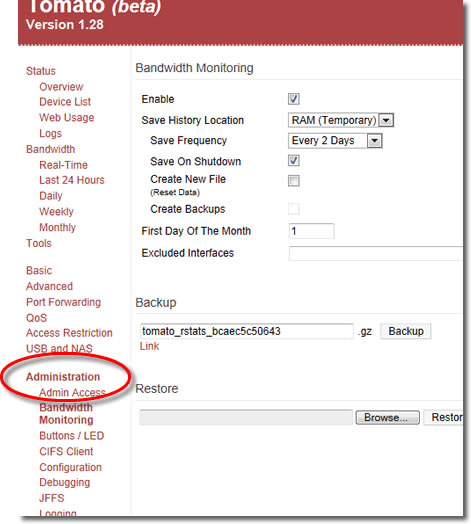
2. Scripts
Go to Scripts
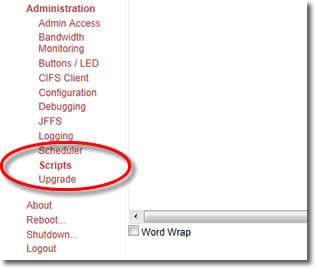
3. Download Configuration file
Please use the config file generator at the top of the page to download your OpenVPN configuration file for Tomato routers.

4. Paste Script
Paste your OpenVPN configuration script into Init or WAN Up..
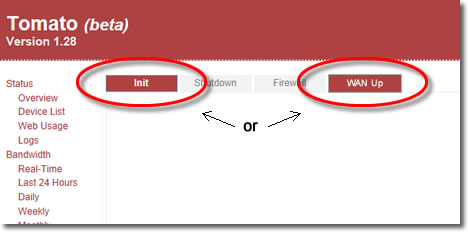
5. Save
Click onto the Save button and then reboot your router.