

Screencast Tutorial
Prerequisites
This guide may vary slightly depending on your device and Android version. In order to install an IKEv2 connection on Android devices you will need our IKEv2 certificate file. Download the certificate here: IKEv2 Certificate File (.crt) — or if your device cannot open the .crt directly, download as .zip.
Step-by-Step Setup Guide
Download Certificate File
Download the IKEv2 certificate file to your Android device: IKEv2 Certificate File (.crt) — or if your device cannot open the .crt directly, download as .zip.
Install Certificate
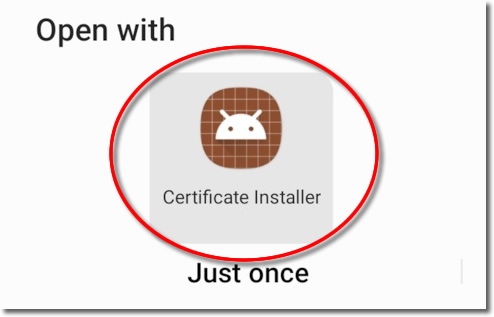
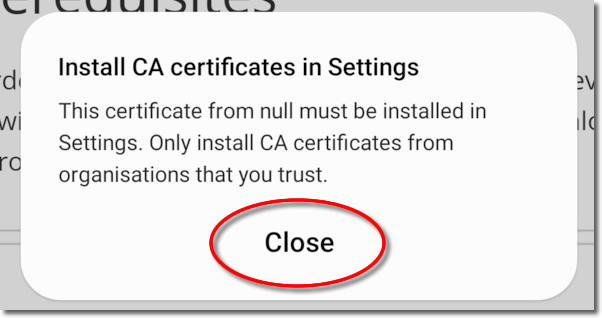
You may be able to install the certificate from the certificate installer (depending on your Android version). If you manage to install the certificate please skip to part 12.
Go to 'Settings'
Go to Settings or click onto the 'Settings' cog.
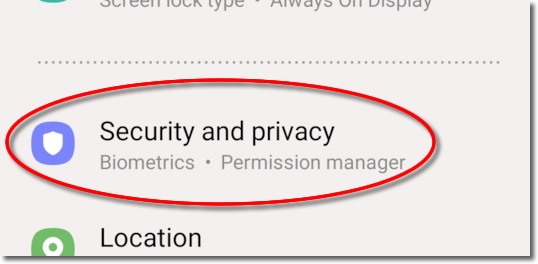
Security and Privacy
Go down to 'Security and Privacy'.
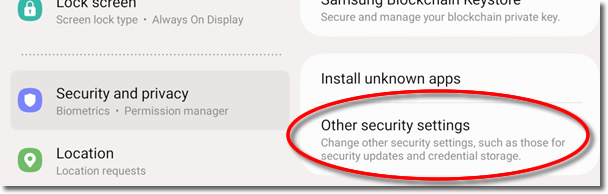
Other Security Settings
Click onto 'Other security settings'.

Install Certificate
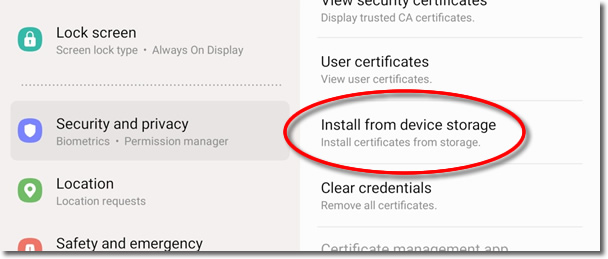
Click onto 'Install from Device Storage'.
CA Certificate
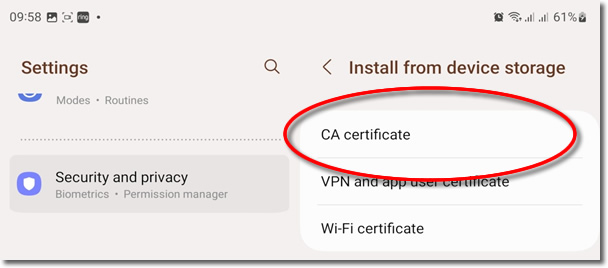
Select 'CA certificate'.
Install Anyway
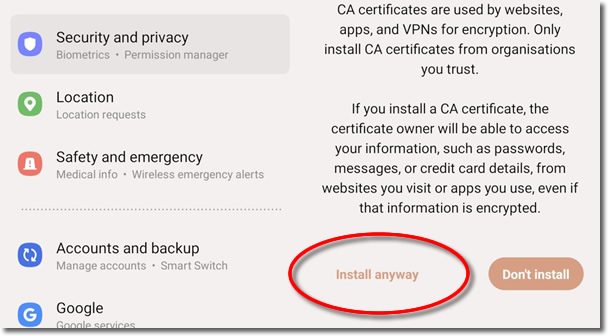
Click onto 'Install Anyway'.
Certificate
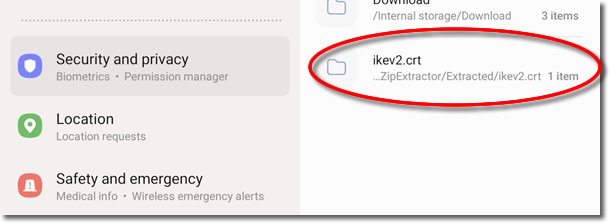
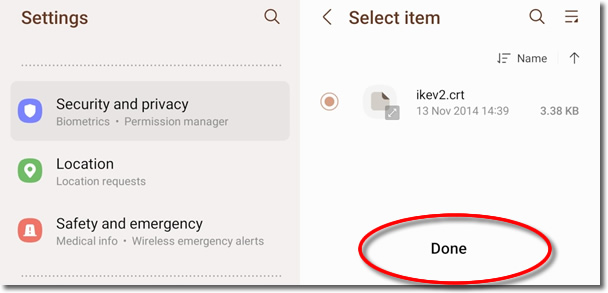
Select the 'ikev2.crt' file that you downloaded earlier.
Done
Highlight the ikev2.crt certificate file and click onto 'Done'.
View Certificate
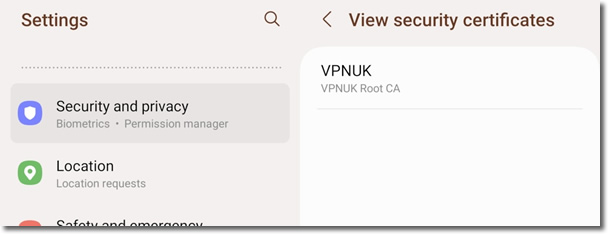
You can check the certificate file has installed by going to 'User Certificates'. You should see the VPNUK Root CA.
Connections
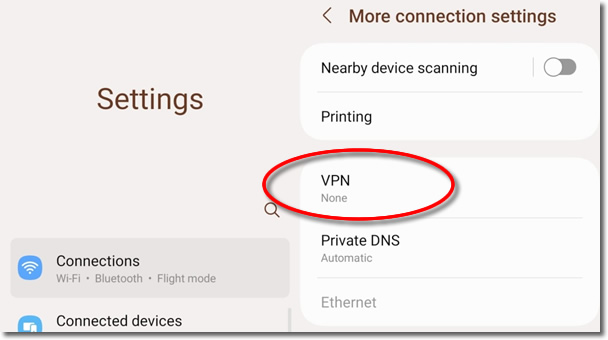
From the Settings menu, go to Internet Connections > More Connection Settings > VPN.
Add VPN Profile
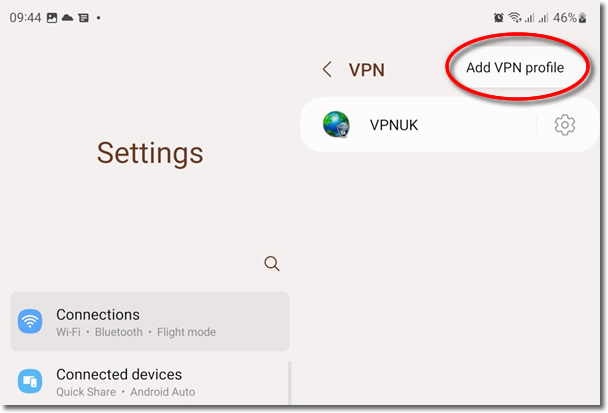
Click onto 'Add VPN Profile'.
Connection Settings
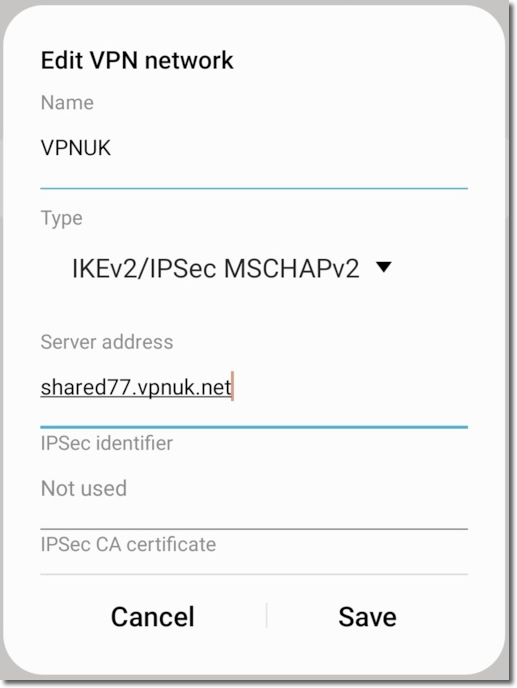
Enter a name for the VPN Connection and then choose 'IKEv2/IPSec MSCHAPv2' from the 'Type' dropdown.
Server & Certificate
Enter your server details and then click onto Server Certificate and choose 'VPNUK Root CA' from the User Certificate store.
Credentials
Enter your Login Username and Password, then click 'Save'.
Connect
Click onto the connection and then click onto 'Connect'.
Troubleshooting Guide
Your VPNUK account should work first time, every time. If you ever experience any problems with your VPN connection the first thing we urge you to do is contact us on our Live Help service — we can offer instant assistance with all connection issues and get you back online.
ISP DNS Hijack / DNS Leak Protection
Some ISPs will attempt to hijack your DNS settings which hinders the VPN connection from functioning correctly. If you find that your VPNUK connection does not route your traffic correctly you can try changing your Public DNS server to the VPNUK DNS server or to an alternative like Google DNS.
- Go to Settings.
- Go to 'Wireless and Network' settings.
- Go to 'Wi-Fi'.
- Click your connection from the list of available networks for a few seconds and select 'Modify network' when the option appears.
- Select the option to 'Show advanced options' and ensure the IP Settings dropdown is set to 'Static'.
- Change 'DNS 1' to the VPNUK Public DNS server: 109.169.6.2 or the Google Public DNS IP address: 8.8.8.8.
- That's it!