
How to Set Up OpenVPN Connect on macOS with VPNUK
This guide will walk you through installing and configuring OpenVPN Connect on macOS using VPNUK's preconfigured OpenVPN configuration file for a fast and secure VPN connection.
Start Configuration
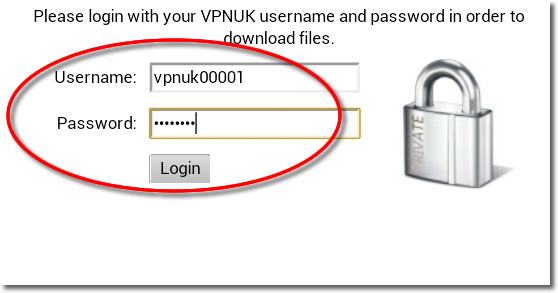
Click Here to open a new window to login and configure the OpenVPN connection. Our system will automatically email your Config file to you or you also have the option to download it manually.
Choose a Server
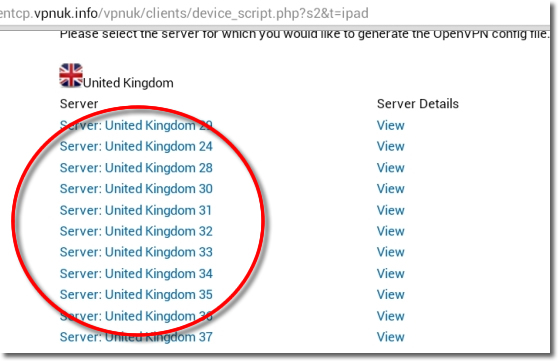
If your account is on the Shared IP platform, you are welcome to choose any or as many servers as you like. If you have a Dedicated IP account your server details will be automatically selected for you.
Get the Config Files
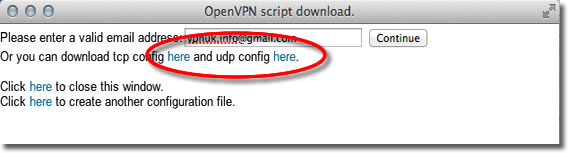
Click onto the download option — you have the option to download the files as UDP or TCP. If you prefer to have the files sent to your inbox, confirm your email address then click onto the 'Continue' button. This will instruct our server to email your config file to you. The email will arrive after a couple of minutes.
Download and Install OpenVPN Connect for macOS
- Open the App Store on your Mac.
- Search for OpenVPN Connect.
- Click Get and install the app.
- Once installed, launch OpenVPN Connect.
Alternatively, download OpenVPN Connect from the official website: openvpn.net/client-connect-vpn-for-mac-os
Import the VPNUK OpenVPN Configuration File
- Open OpenVPN Connect on your Mac.
- Click "Import Profile".
- Select "FILE" and click Browse.
- Locate and select the .ovpn configuration file you downloaded in Step 3.
- Click Open to import the profile.
- The VPN connection will now appear in the OpenVPN Connect interface.
Connect to VPNUK via OpenVPN Connect
- Click the Connect button next to your VPNUK profile.
- Enter your VPNUK username and password when prompted.
- Click Save Password (optional).
- Click OK to connect.
- Once connected, OpenVPN Connect will display a green connection icon and your new VPN IP address.
To verify your new VPN IP, visit ipaddress.com. If the VPN is active, your IP should match VPNUK's server location.
Troubleshooting
Your VPNUK account should work first time, every time. If you experience any problems, our live support team can offer instant assistance and get you back online.
Contact Support