
How to Set Up L2TP/IPSec VPN on Windows 10 with VPNUK
This guide will walk you through manually setting up an L2TP/IPSec VPN connection on Windows 10 using VPNUK's secure VPN service. While L2TP/IPSec provides good security and compatibility, if you experience connection issues, we recommend trying IKEv2 or the VPNUK App for improved performance.
Your VPN username and password are in the Members Area under VPNUK Account Details. These are different from your Members Area login. Your server address is in your Welcome email or the Client CP.
Pre-Shared Key: The VPNUK L2TP/IPSec pre-shared key is 69000903
Open Windows VPN Settings
- Press Win + I to open Windows Settings.
- Navigate to Network & Internet → VPN.
- Click Add VPN.
Configure the L2TP/IPSec VPN Connection
- VPN Provider: Windows (built-in)
- Connection Name: VPNUK L2TP
- Server Name or Address: Enter your VPNUK server (from your Members Area or Welcome email)
- VPN Type: L2TP/IPSec with pre-shared key
- Pre-Shared Key:
69000903 - Type of Sign-in Info: Username and password
- Enter your VPN username and password.
- Click Save.
Modify VPN Connection Properties
- Click on the VPNUK L2TP VPN connection, then click Advanced options.
- Scroll down and click Edit adapter options.
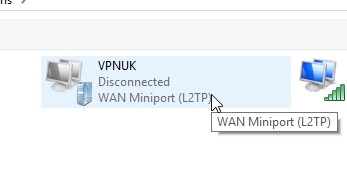
- Right-click on the VPNUK L2TP connection, then select Properties.

Adjust Security Settings
- Click on the Security tab.
- Type of VPN: Select L2TP/IPsec VPN from the dropdown menu.
- Click on Advanced Settings and check Use pre-shared key for authentication. Enter:
69000903 - Authentication: Select "Allow these protocols". Check CHAP and Microsoft CHAP Version 2 (MS-CHAP v2).


Disable IPv6 (Recommended for Stability)
- Click on the Networking tab.
- Uncheck Internet Protocol Version 6 (TCP/IPv6).
- Click OK to save changes.

Connect to VPNUK Using L2TP/IPSec
- Click on the networking icon in the system tray.
- Select VPNUK L2TP VPN.
- Click Connect.
- Enter your VPNUK username and password, then click OK.
Your Windows 10 computer is now connected to VPNUK using L2TP/IPSec!
Troubleshooting
VPN Not Connecting?
- Ensure the L2TP/IPSec pre-shared key is correct:
69000903 - Check your VPNUK server address (found in your Members Area or Welcome email).
- Restart your PC and try reconnecting.
- Disable IPv6 in the network adapter settings.
Error 809 (L2TP/IPSec Blocked)?
Open Command Prompt (As Admin) and enter:
REG ADD HKLM\SYSTEM\CurrentControlSet\Services\PolicyAgent /v AssumeUDPEncapsulationContextOnSendRule /t REG_DWORD /d 2 /f
Then restart your PC and try again.
Slow VPN Speeds?
- Try a different VPNUK server.
- Restart your router and PC.
Still need help? Our support team is available 24/7. Contact us here and we will get you connected.