Setting up PPTP on ASUS (Merlin Firmware) routers.
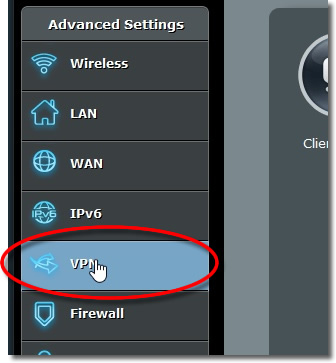
1. Go to VPN
Login to your ASUS router adminstration and from the ‘Advanced Settings’ panel go to ‘VPN’.
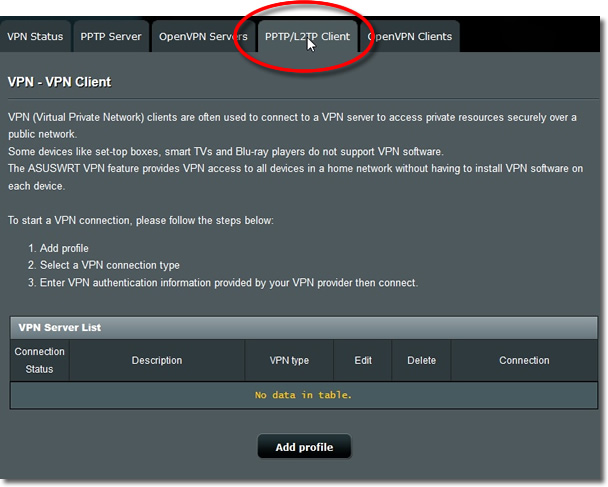
2. PPTP Client
Click opnto the ‘PPTP/L2TP Client’ tab.
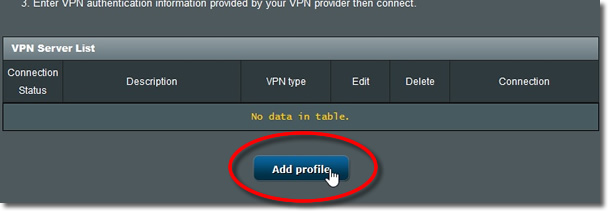
3. Add Profile
Click onto the ‘Add Profile’ button.
4. PPTP Settings
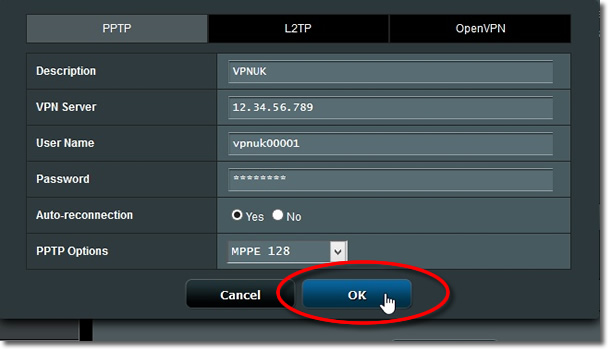
Highlight your ‘PPTP’ settings and enter the following information.
1. Description – Any name you choose.
2. VPN Server – Enter the VPNUK server IP that your account has access to. You can find the server information in your ‘Welcome to VPNUK’ email or in the ‘Client CP‘ on the VPNUK website.
3. Username and Password: Enter your VPNUK login Username and Password.
4. Auto-reconnection: You can choose to automatically reconnect or set the connection to ‘No’ if you prefer to connect.
5. PPTP Options: Choose ‘MPPE 128’.
6. Click ‘OK’.
5.Activate
Click onto the ‘Activate’ button to connect the VPN.
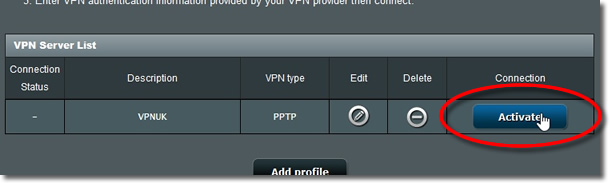
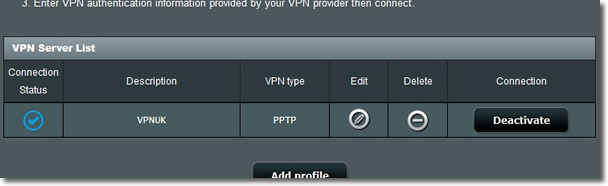
6. Connected
Once connected to the VPNUK service your connection status will change.
Note: The router can sometimes take a few minutes before it begins routing through the VPN.